

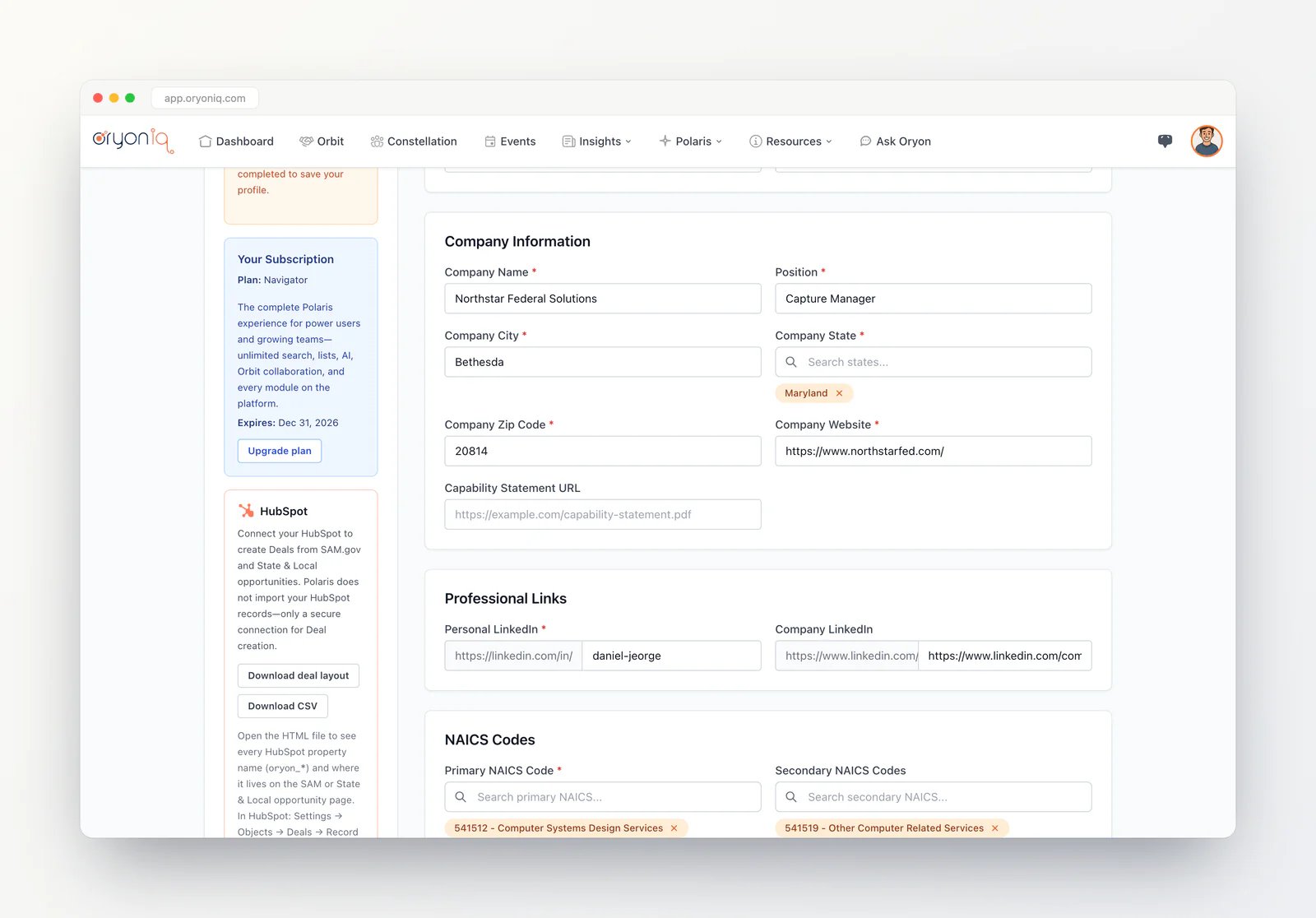
Company, LinkedIn and NAICS sections of the profile
The Your Subscription card on this page shows your plan and its expiry date. Compare plans in Plans and tiers.
How do I open my profile?
Select your avatar at the top right of any page and choose Settings. You can also select Edit on the profile card on your Dashboard. Both open the same form.How do I update my OryonIQ profile?
1
Change your photo
Select the camera button on your profile photo and upload a new picture.
2
Fill in your personal and company details
Complete the Personal Information and Company Information sections. For Company State, type in the Search states… box and pick your state. It shows as a chip, and the x on the chip removes it.
3
Add your LinkedIn links
The Personal LinkedIn box already starts with https://linkedin.com/in/, so type only your handle. Company LinkedIn is optional.
4
Choose your NAICS codes
Type in the Search primary NAICS… box and pick your main code, which appears as a chip such as “541512 - Computer Systems Design Services”. Add any others under Secondary NAICS Codes.
5
Finish the form and save
Scroll down for the remaining sections, such as your business designations, then save. If a required field is empty, the profile won’t save.
Which profile fields are required?
Fields marked with an asterisk are required. The Required Fields note in the left column reminds you that they must be filled in to save.
More sections further down the form cover your business, including designations. Fill in whatever applies. New to NAICS? The Glossary explains it.
Why does a complete profile matter?
Your profile is visible to other members of the OryonIQ community. The About Your Profile note on this page asks you to keep it current so others can find and connect with you. It also gives OryonIQ Orbit something to work with. The Set Matching Preference criteria include Company City, Company State, NAICS Codes and Federal Business Designation(s). Those are the same details you enter here. See Orbit.What does the Your Subscription card show?
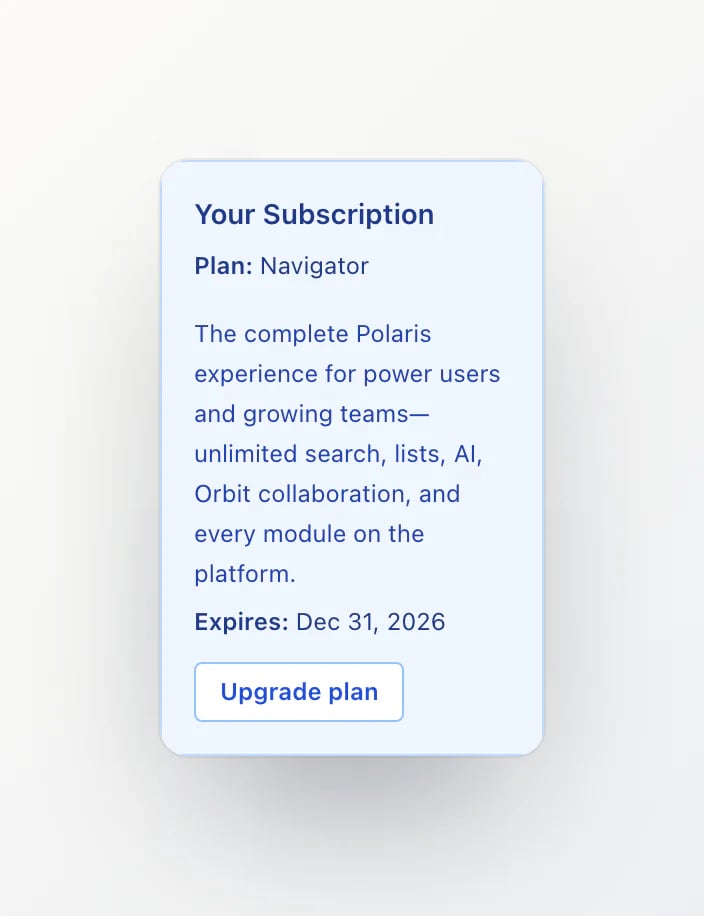
Plan, description and expiry date at a glance
How does the HubSpot card work?
The HubSpot card sits below the Your Subscription card. It connects your HubSpot account so you can create Deals from SAM.gov and State & Local opportunities. OryonIQ does not import your HubSpot records; the connection is only for creating Deals. The card has three buttons: Download deal layout, Download CSV and Connect HubSpot. Open the HTML deal layout to see every HubSpot property name OryonIQ uses (they start withoryon_) and where each one appears on the opportunity page. In HubSpot, go to Settings, then Objects, then Deals, then Record customization, and add a group named “Oryon SAM Opportunity”. Full setup steps are on the HubSpot integration page.