

Events is the GovCon event calendar inside OryonIQ, covering industry expos and conferences. Filter by agency or location to find events worth the trip, then save them or open the event page to register. You can also post your own event for other OryonIQ members to find.
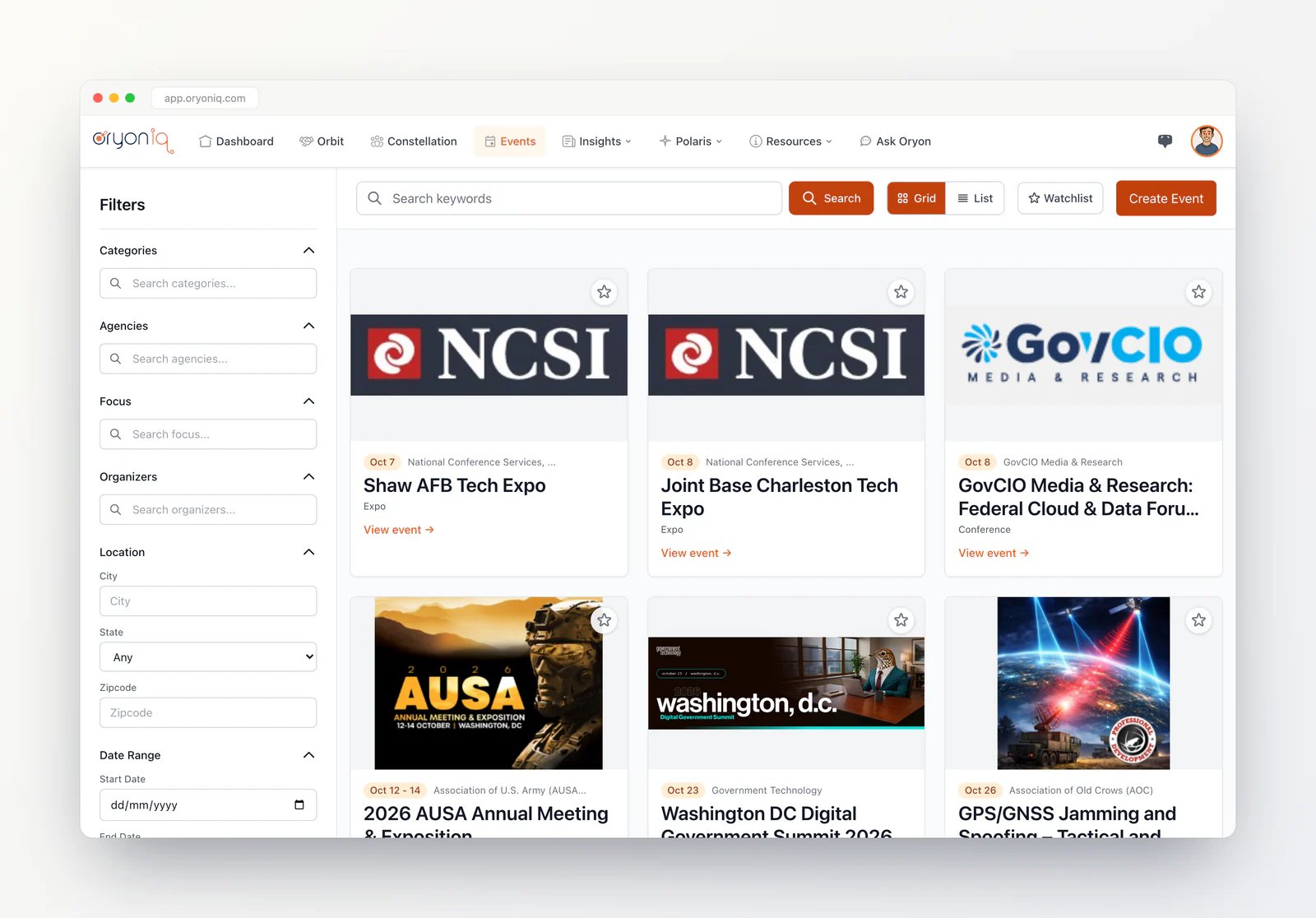
OryonIQ Events page with Categories, Agencies, Focus, Organizers, Location and Date Range filters beside a grid of event cards with dates and View event links

Event cards, with the filter panel on the left

Events is listed on the Explorer plan and above. See Plans and tiers for what each plan includes.

How do I find an event?

1

Open Events

Select Events in the top navigation.
2

Search by keyword

Type a topic or event name into Search keywords and select Search.
3

Narrow the list

In the Filters panel, Categories, Agencies, Focus and Organizers each have their own search box. Location takes a City, a State (set to Any until you pick one) and a Zipcode. Date Range takes a Start Date and an End Date.
4

Pick a layout

Switch between Grid and List views and pick whichever is easier to scan.
5

Save the ones you want

Select the star on an event card. The Watchlist button opens the events you’ve saved.
Each card shows a date chip such as “Oct 12 - 14,” the organizer, the title, the event type (for example Expo or Conference) and a View event link.

What’s on an event page?

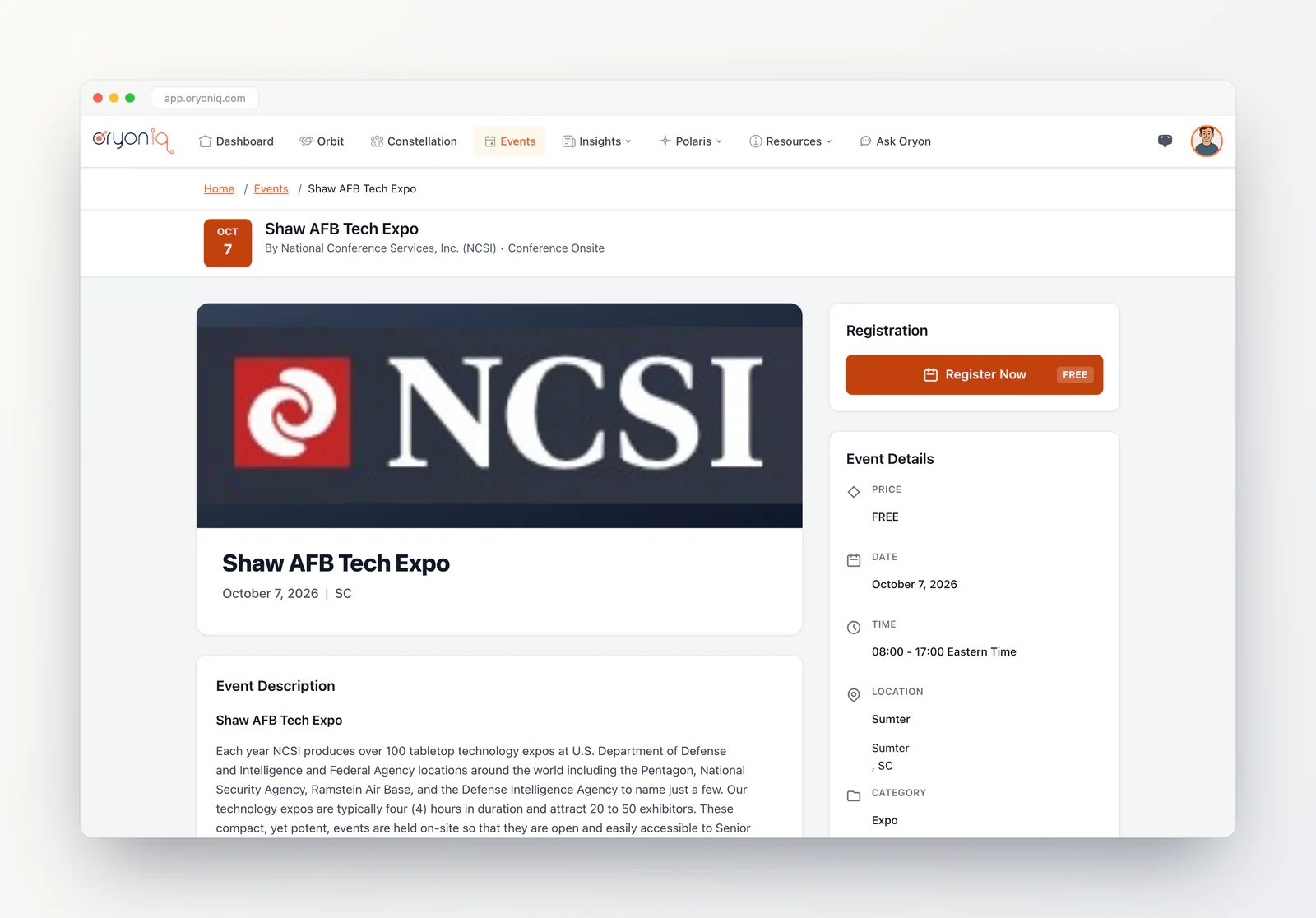
Select View event on a card to open its page. A Home / Events breadcrumb at the top takes you back to the list. Below it are a date badge, the title, the organizer and the format, such as “Conference Onsite.” The right column holds two cards:
  • Registration, with the Register Now button. Free events carry a FREE badge on the button.
  • Event Details, listing Price, Date, Time with its time zone, Location and Category.
The organizer’s full write-up is under Event Description.
OryonIQ event page with a date badge, title and organizer, a Registration card with Register Now and a FREE badge, and an Event Details panel

An expo's detail page, with Register Now and the event details

Times are shown with their time zone, for example Eastern Time. Convert to your own before you book travel or block your calendar.

How do I create an event?

Hosting an industry day or a small business outreach session? You can list it in OryonIQ Events.
1

Start a new event

On the Events page, select Create Event. The Create New Event page opens with four steps across the top: Details, Date & location, Audience, and Review & publish.
2

Fill in Details

Complete the step 1 fields described in the table below. Every one is marked with a red asterisk, so all are required.
3

Add the date, location and audience

Move through the Date & location step, then the Audience step.
4

Review and publish

Check your entries on the Review & publish step, then publish.
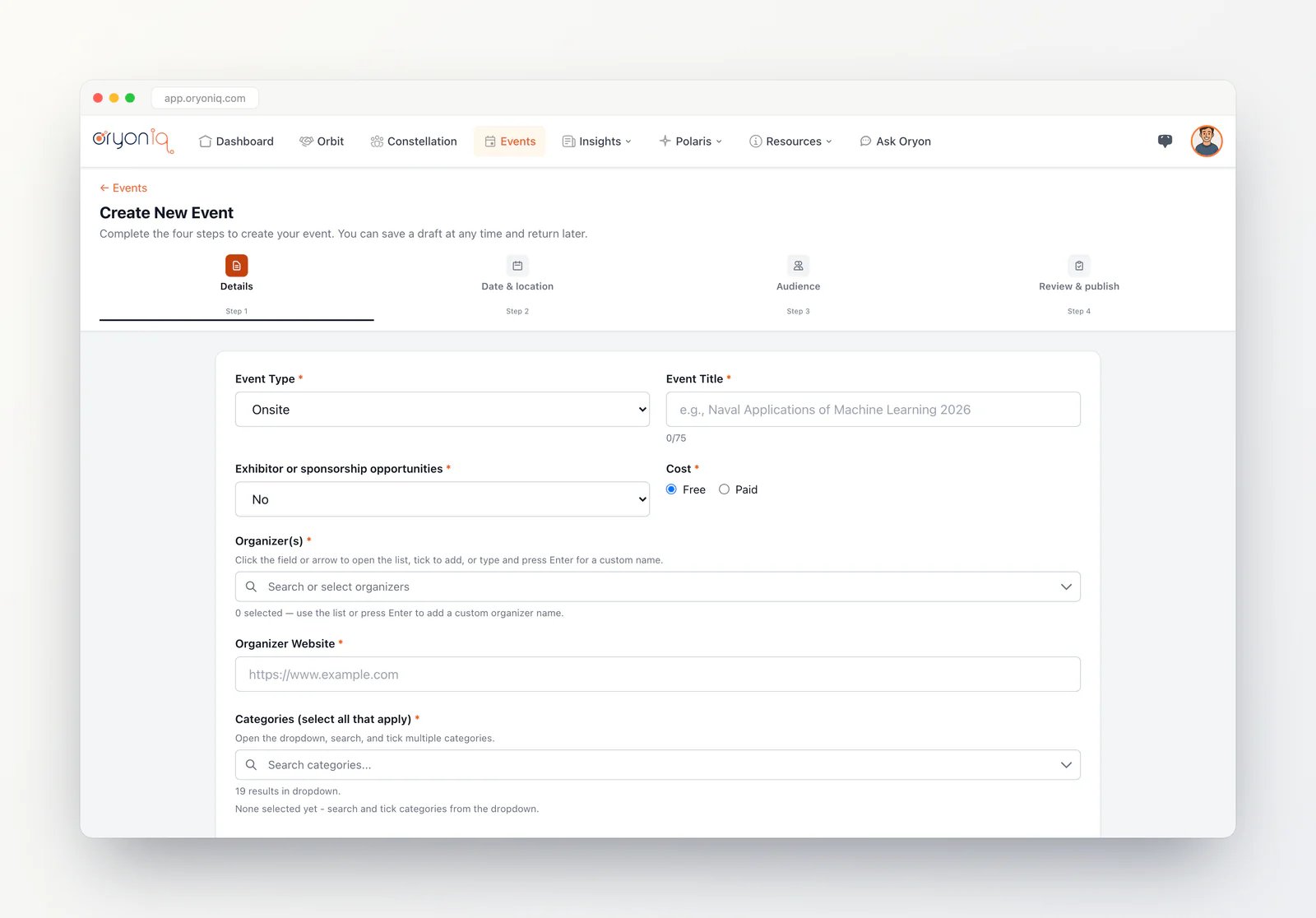
Create New Event page in OryonIQ with four steps across the top and the Details form, including Event Type, Event Title, Cost and Organizer(s)

Step 1 of Create New Event, the Details form

You don’t have to finish in one sitting. The Create New Event page says you can save a draft at any time and return later.

Frequently asked questions

Can I register for an event through OryonIQ?

Yes. Every OryonIQ Events detail page has a Registration card with a Register Now button. Free events show a FREE badge on that button.

Can I add my own event to OryonIQ Events?

Yes. Select Create Event in OryonIQ Events and complete four steps: Details, Date & location, Audience, and Review & publish.

Can I save an unfinished event in OryonIQ?

Yes. The Create New Event page in OryonIQ Events lets you save a draft at any time and return later to finish it.

Where do my saved OryonIQ events go?

Starred events go to the Events tab of My watchlists in OryonIQ. The Watchlist button on the Events page opens them too. Met someone worth teaming with at an event? Find them in OryonIQ Orbit and send a connection request.
Last modified on October 10, 2026