

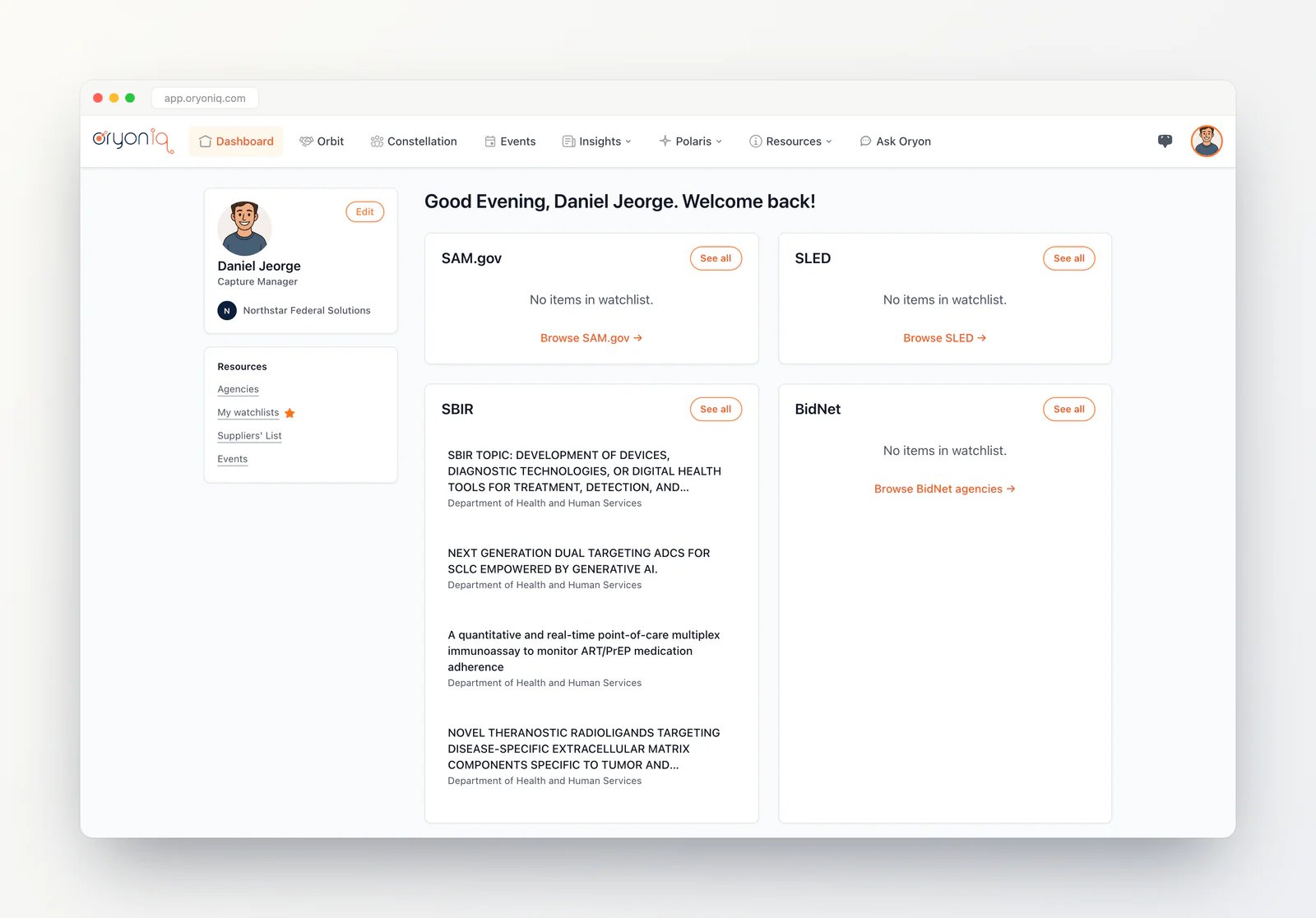
Dashboard after sign-in, with the profile card and watchlist widgets
Every OryonIQ plan has the Dashboard, including the free Launchpad plan. Access to some of the modules it links to depends on your plan. See Plans and tiers.
What’s on the OryonIQ Dashboard?
Lower on the page there’s also a Communities panel.
How do the watchlist widgets work?
The four widgets are titled SAM.gov, SLED, SBIR and BidNet. SLED is the GovCon shorthand for state, local and education buying, and the SLED widget covers what you save from State & Local. Each widget lists saved items by title and agency. An empty widget reads “No items in watchlist.” Under that message is a link to start browsing: Browse SAM.gov, Browse SLED or Browse BidNet agencies.1
Open a source
Select the browse link on an empty widget, or open the module from the Polaris menu.
2
Star what you want to track
Select the star on a card. The star’s label changes from “Add to Watchlist” to “In Watchlist.” On BidNet, open an agency first, because you star its individual open bids rather than the agency card.
3
Check back on the Dashboard
The item now shows in the matching widget. Select See all to work with the full list in My watchlists.
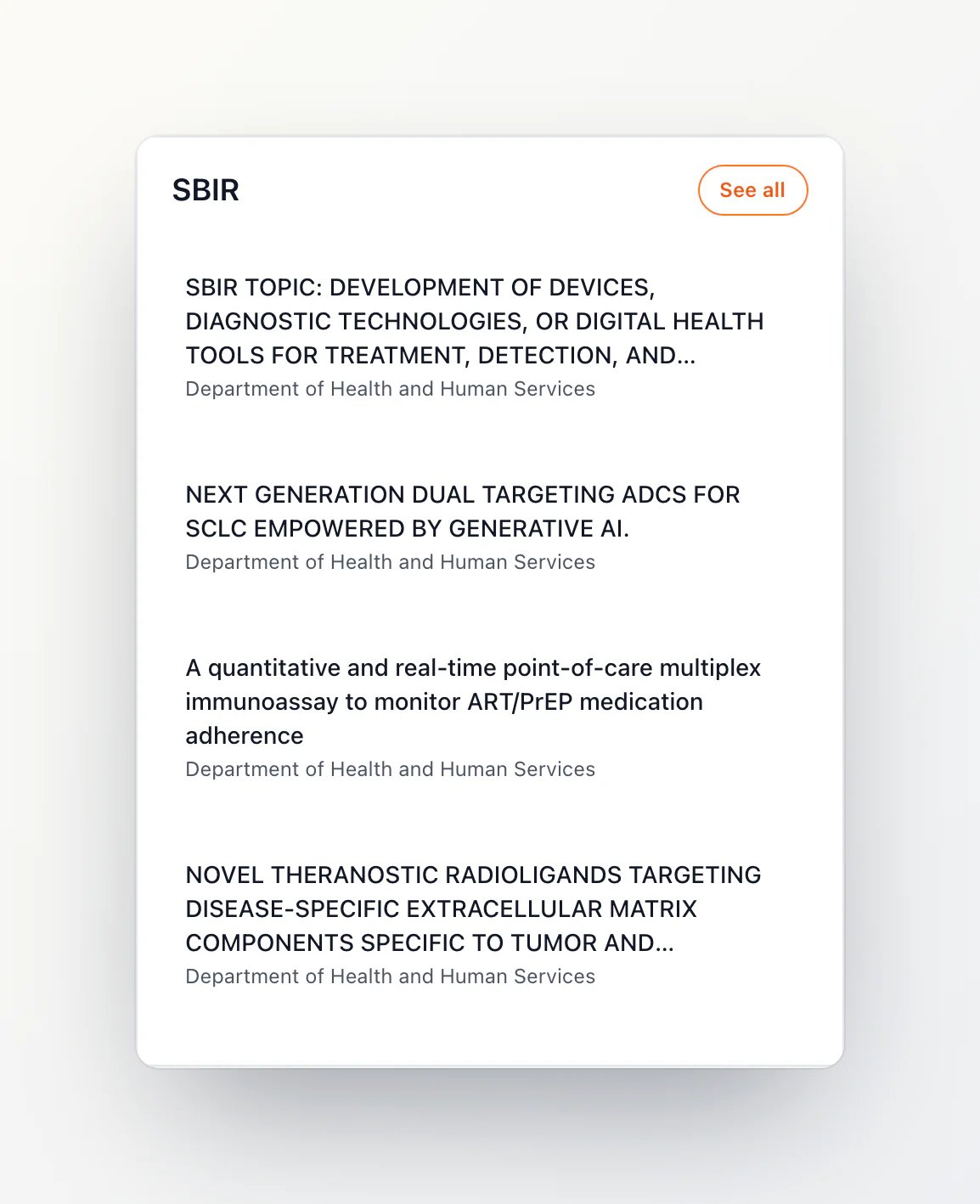
Four saved HHS topics in the SBIR widget
Who shows up in Explore Suppliers?
Further down, Explore Suppliers lists recommended companies. The examples on screen are large prime contractors, which are worth knowing if you plan to pursue subcontract work. Each entry shows a logo, the company name, its city and state, and a short description. Select See details to open a company. Select See all at the top of the panel for a longer list, or open the full Supplier List from the Resources links.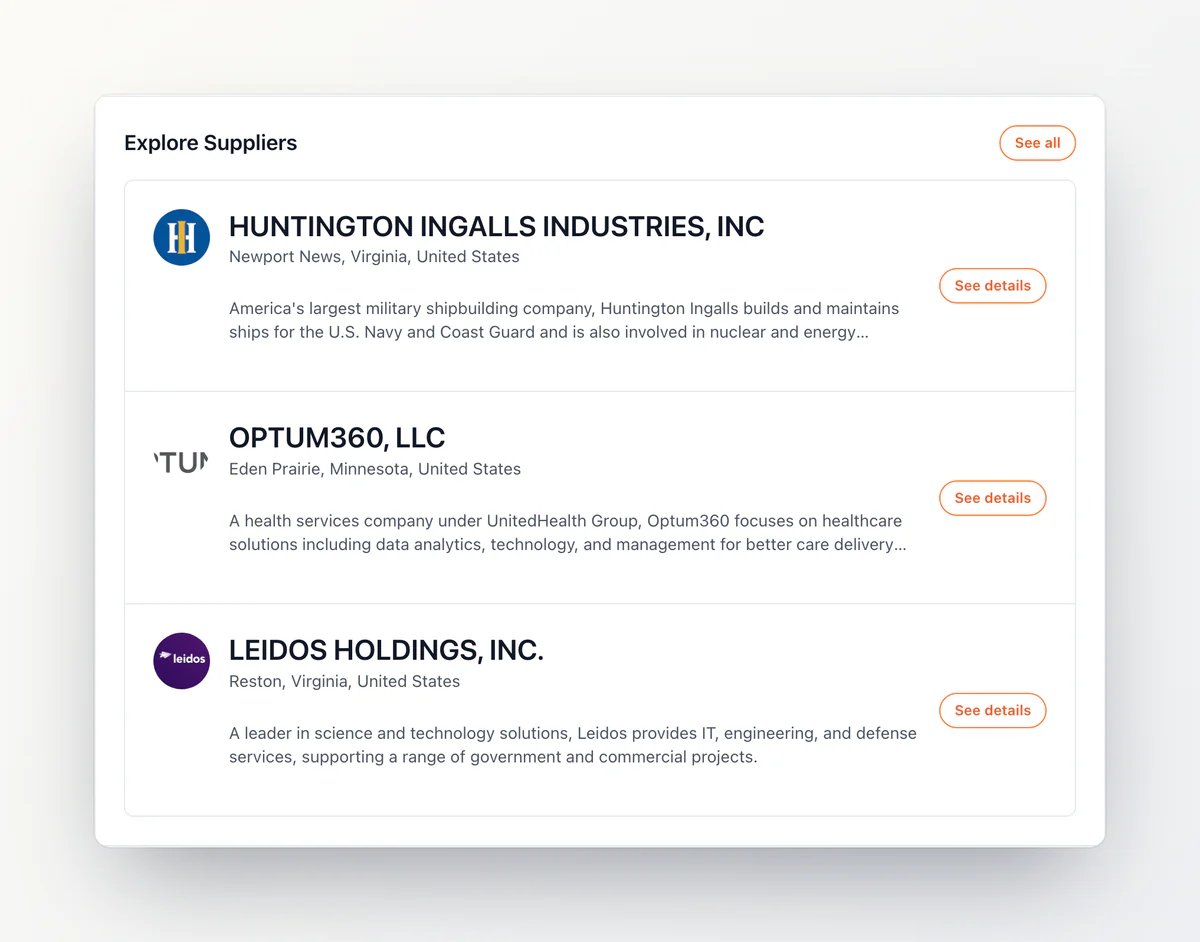
Explore Suppliers, with three recommended companies