

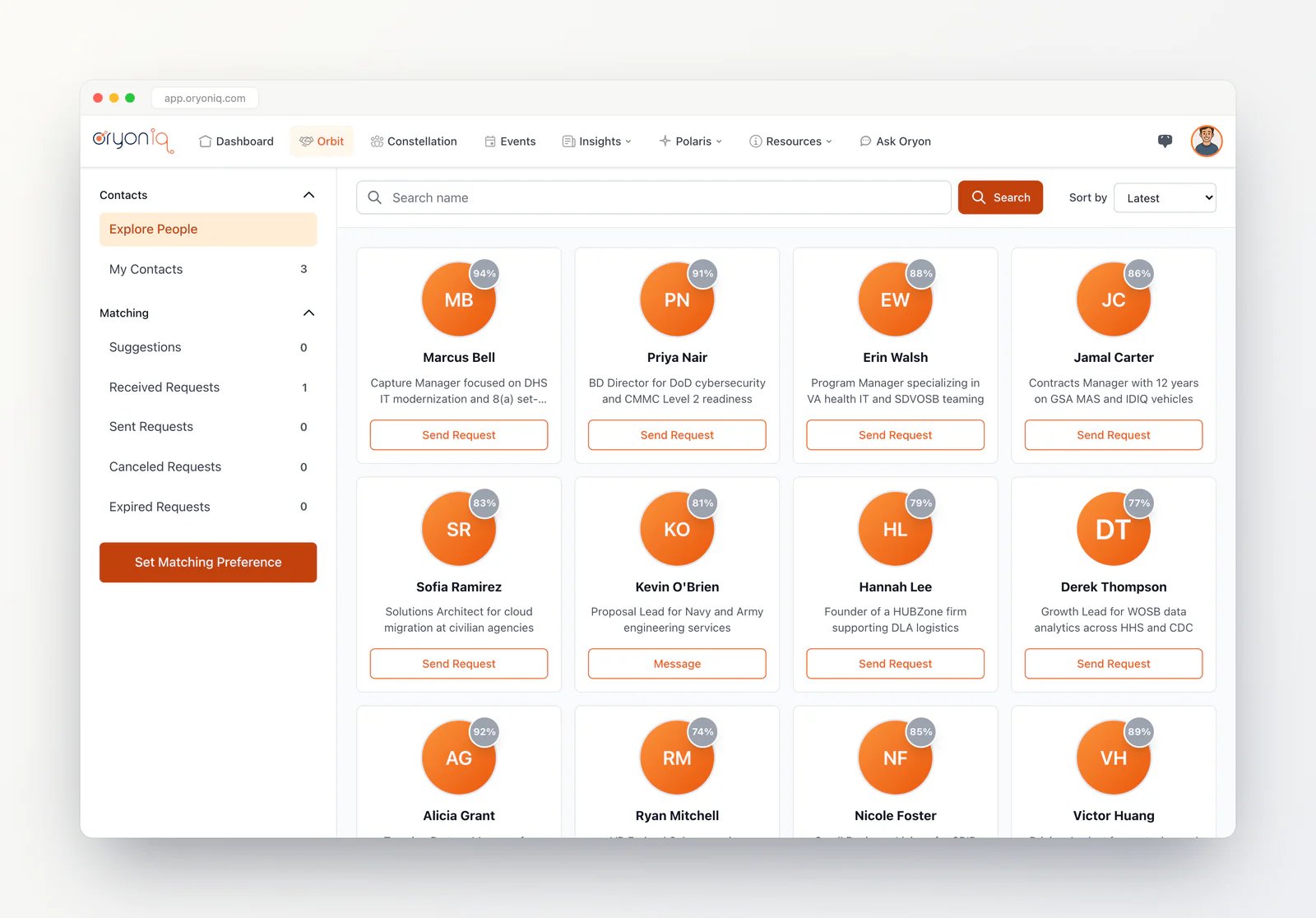
Explore People, where each card shows a match score
Navigator includes full Orbit: partner suggestions, direct messages and matching. See Plans and tiers for the other plans.
What’s in the Orbit sidebar?
The left sidebar has two groups. The number next to each list is its current count.
Below the lists is the Set Matching Preference button.
What does the Orbit match score mean?
The percentage badge on each avatar is the Orbit match score. A higher number means a closer match. Your matching preferences decide which criteria count most, so a few minutes spent setting them makes the scores more useful. On Explore People, each card shows a photo or initials, the match score, a name and a one-line bio. People you haven’t connected with show Send Request. Your contacts show Message instead. Use Search name to find a specific person, and the Sort by menu, which shows Latest, to reorder the grid.How do I set matching preferences?
1
Open the window
Select Set Matching Preference in the sidebar. The Set Matching Preferences window opens.
2
Weight each criterion
Each row is one criterion, with an importance dropdown on the right that shows a level such as Low (Optional). Raise the ones that matter most for the work you pursue.
3
Scroll for the rest
The first rows are Company City, Company State, Company Zip Code, NAICS Codes, Industry Type (PSC Code), Federal Business Designation(s) and Contract Vehicles. More criteria sit below them.
4
Save
Select Save Preferences. To close without changes, select Cancel.
5
Check your suggestions
Open Suggestions in the sidebar to see who Orbit recommends.
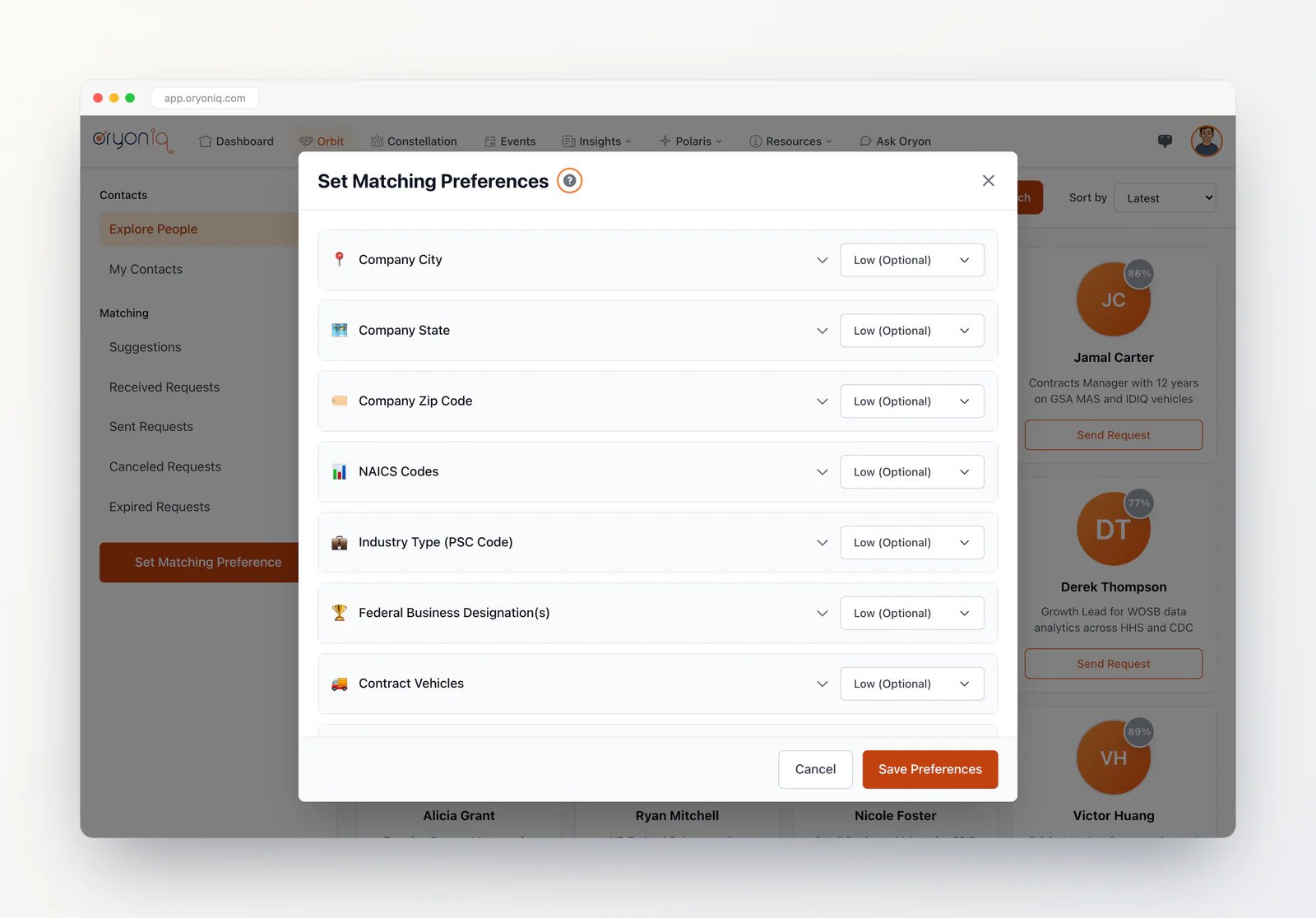
Matching criteria, each with its own importance setting
How do I send a connection request?
1
Pick a person
Browse Explore People or Suggestions, or look someone up by name. Start with the highest match scores.
2
Open the request window
Select Send Request on their card. The Send Connection Request window asks you to write a personalized message introducing yourself.
3
Write your note
Type in the message box, which starts with the hint “Hi there, I’d love to connect…” Say what your company does and why you want to team.
4
Send it
Select Send Request in the window. The request waits under Sent Requests until the other person responds.
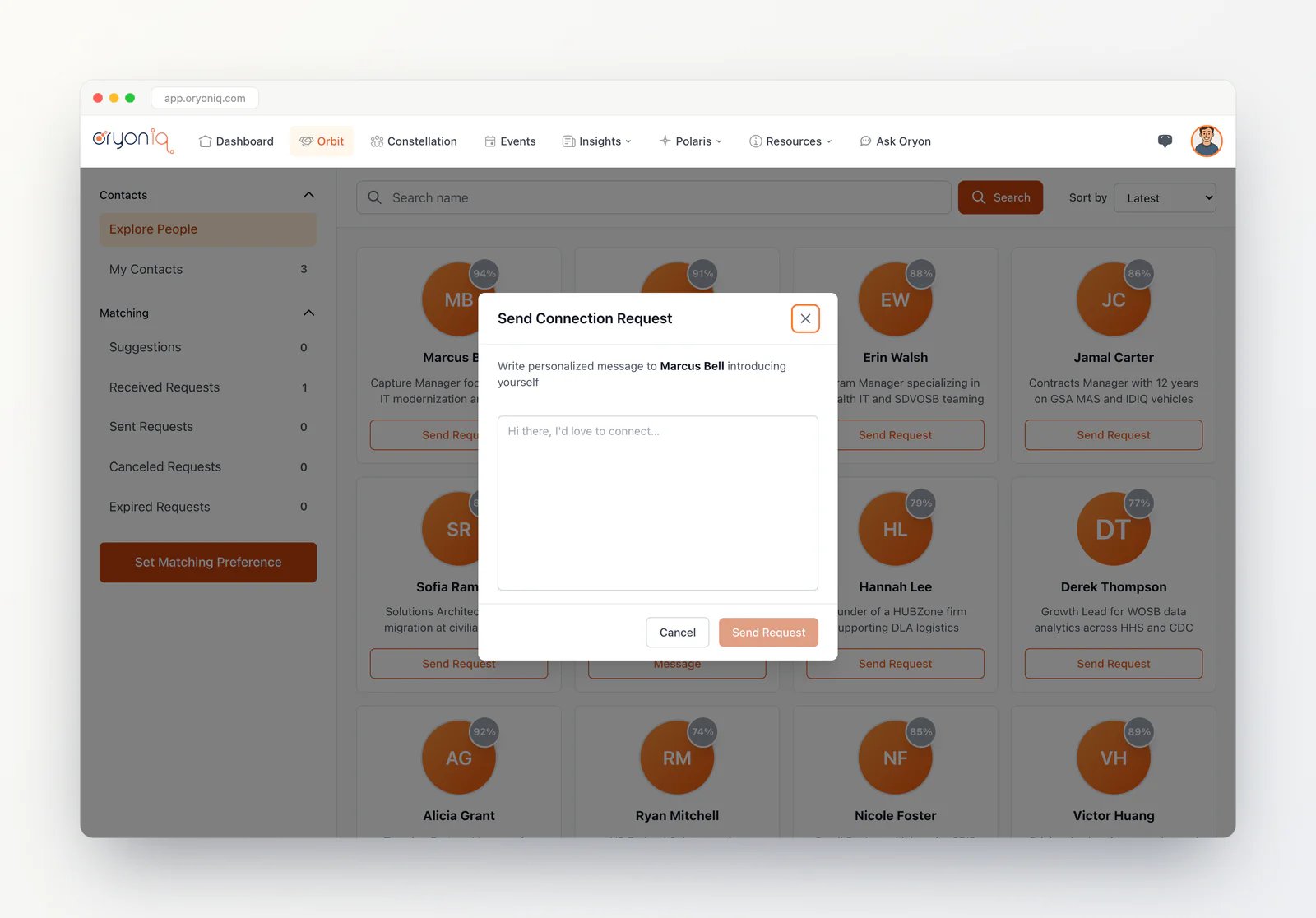
Writing an intro in the Send Connection Request window