

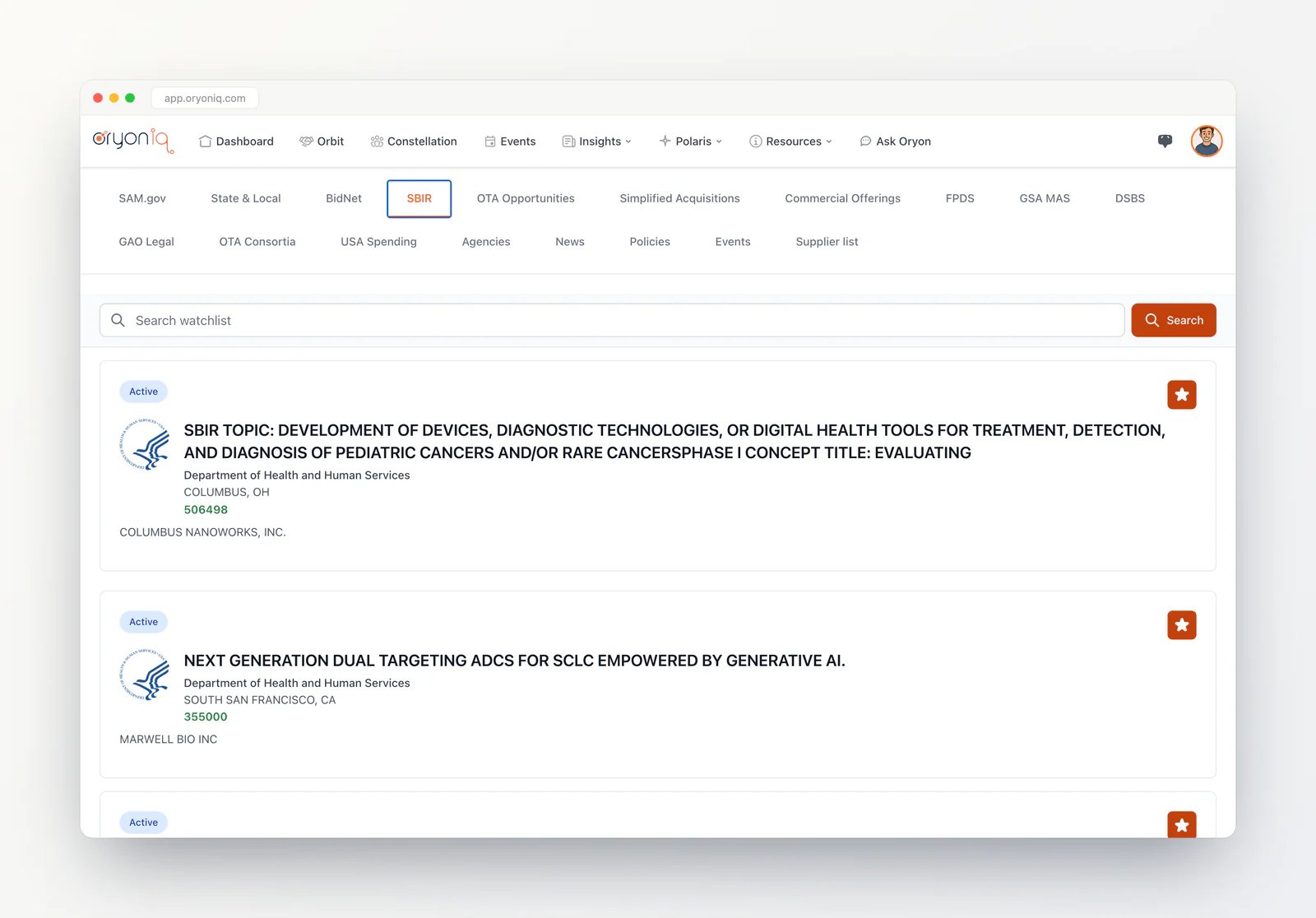
Saved awards on the SBIR tab
Every OryonIQ plan has My watchlists. You can star items in any module your plan includes. See Plans and tiers.
How do I save an item?
1
Find something worth tracking
Open a module such as SAM.gov in Polaris, News in Insights, Events or the Supplier List.
2
Select the star
Select the star on the item’s card. In Polaris modules, the star’s label reads “Add to Watchlist” and changes to “In Watchlist” once saved.
3
Find it on its tab
The item appears on the matching tab in My watchlists.
BidNet agency cards don’t have a star. Open the agency in BidNet, then star the individual open bids you want to follow.
How do I find and manage saved items?
1
Open My watchlists
On your Dashboard, select My watchlists in the Resources list, or See all on any watchlist widget.
2
Pick a tab
Select the tab for the module you want, such as SAM.gov, SBIR, News or Events.
3
Search within the tab
Type into Search watchlist and select Search to narrow the list.
4
Review your cards
Opportunity and award cards show a status chip such as Active, the agency seal, title, agency, location, amount and company.
5
Remove what you no longer need
Select the filled star on a card to take it off your watchlist.
Which tabs does My watchlists have?
There are 18 tabs, one for each source.
OTA Opportunities, Simplified Acquisitions and Commercial Offerings are focused views of SAM.gov data, but each keeps its own tab. A notice you star in OTA Opportunities shows on that tab, not on the SAM.gov tab.
Can I send a saved opportunity to HubSpot?
Yes. Saved cards on the SAM.gov tab can show the orange HubSpot icon, Send to HubSpot. Selecting it creates a Deal in your HubSpot account from the opportunity, and you choose the pipeline and deal stage when you send it. Connect HubSpot from your profile first; the steps are in HubSpot integration.How do watchlists appear on the Dashboard?
Your Dashboard previews four sources: SAM.gov, SLED (State & Local), SBIR and BidNet. Each widget lists your saved items with a See all button that opens the full list here.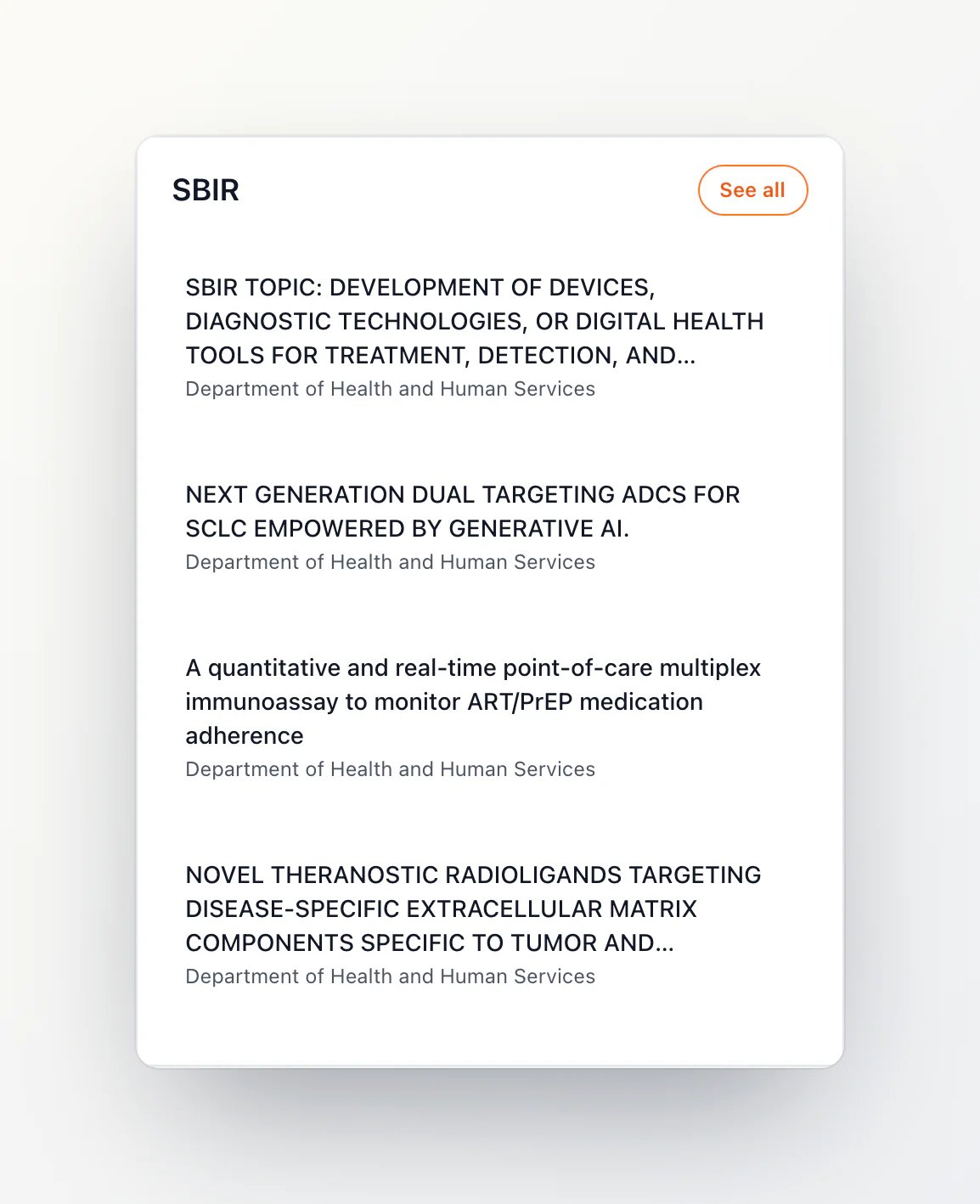
The Dashboard's SBIR widget, a preview of the SBIR tab